

Quick start

Place the pads, plug in, play.

Padino is a MIDI controller designed around the musician's gesture, the instrument and the stage. With its remote pads, it triggers sounds, samples, effects or loops from wherever makes the most sense: on an instrument, on the body, on the floor, on a set piece or anywhere in the performance space.

Concert · Studio · Theatre · Dance · Performance · Sound installation · Education

The system components

  1. Padino Dactyl

    Captures the gesture

    The remote pads. They attach to an instrument, to the body, to the floor or to a set piece. Each Dactyl triggers a MIDI note, a sound, a sample or a loop.

    Padino Dactyl
  2. Padino Raptor

    Transmits wirelessly

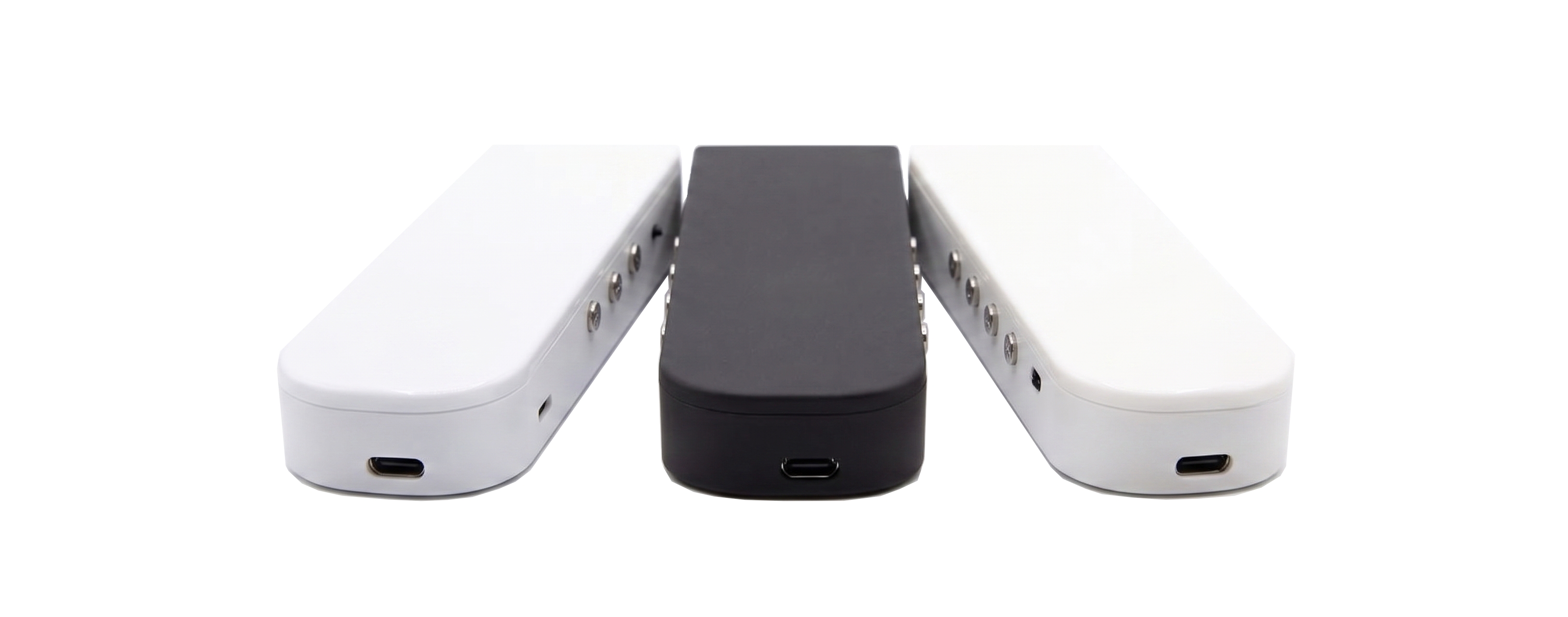
    The wireless satellite module. Up to 8 Dactyls plug into it, and it sends their signals over radio to the Rex, so the pads can be placed freely on stage or around an instrument.

    Padino Raptor
  3. Padino Rex

    Receives and sends MIDI

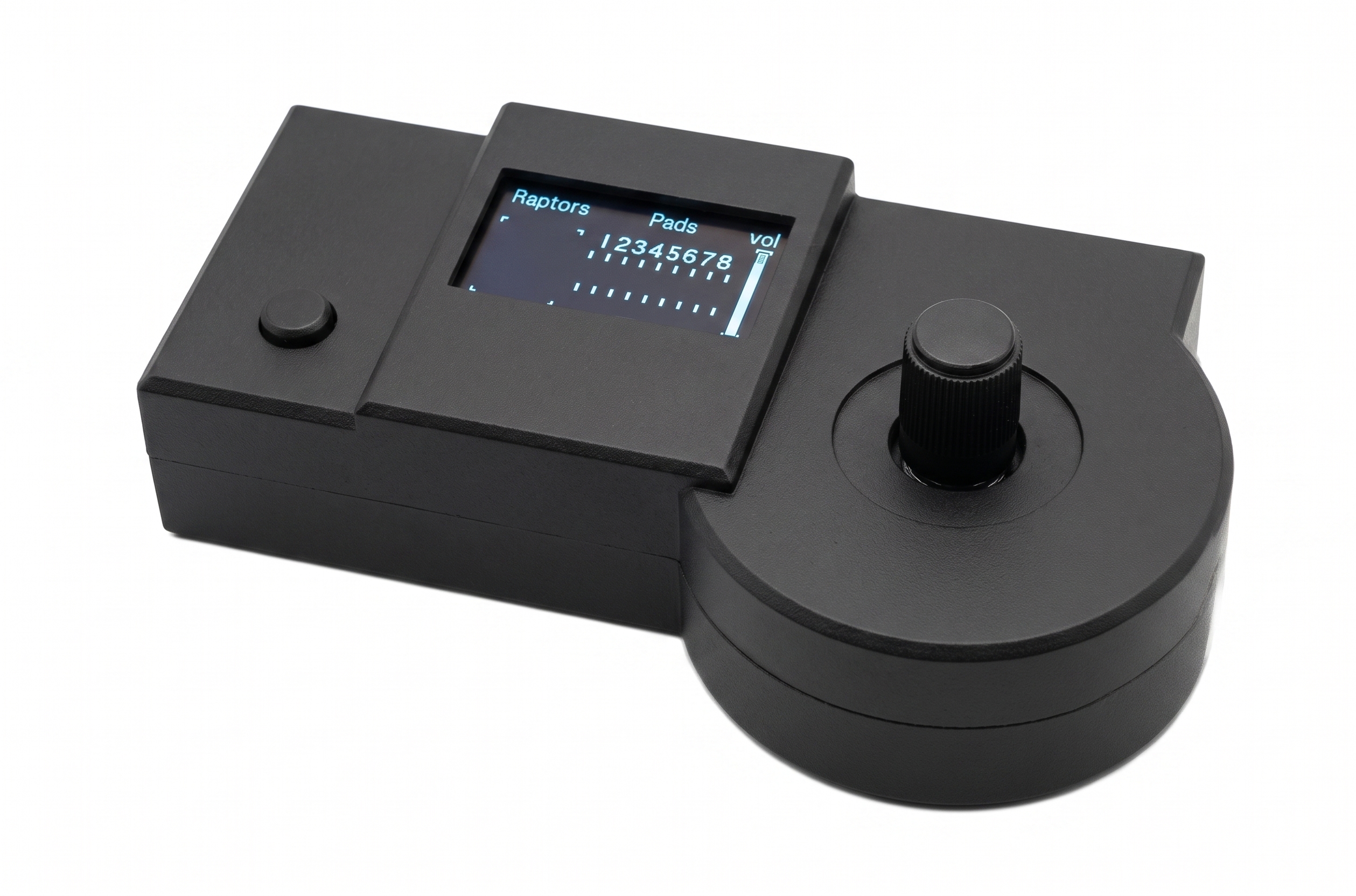
    The main unit, with a screen and 8 pads. It sends MIDI to a computer, a tablet, a phone or a synthesizer, over USB or Bluetooth LE, and can act as the main receiver for up to 16 Raptors.

    Padino Rex

Three MIDI operating modes

From the simplest to the most freeform, play in minutes

Simple USB setup

The most direct way to get started.

Rex mode: USB Standalone

  • Dactyl
  • Rex
  • Computer
  1. Plug the Dactyls into the Padino Rex.
  2. Connect the Rex to the computer with a USB-C cable.
  3. Turn the Rex on in USB Standalone mode.
  4. Open your music software: Ableton Live, Logic Pro, GarageBand, MainStage or any other MIDI-compatible software.
  5. Select Padino Rex as the MIDI input.
  6. Load an instrument, a drum rack or a sampler.
  7. Hit the pads: you're playing.

The pads are plugged directly into the Rex, which sends MIDI over USB to your gear. No driver needed: the Rex shows up as a standard MIDI device.

Cable-free, over Bluetooth LE

Handy to play more freely, with no cable between the Rex and your device.

Rex mode: Bluetooth LE

  • Dactyl
  • Rex
  • Phone / tablet
  1. Plug the Dactyls into the Padino Rex.
  2. Turn the Rex on in Bluetooth LE mode (Bluetooth Device entry in the menu).
  3. Connect to the Rex from the computer, tablet or phone.
  4. Open your music app.
  5. Select Padino Rex as the MIDI input.
  6. Hit the pads: you're playing, cable-free.

Bluetooth pairing depends on the device and the software you use: see Connect the Rex over Bluetooth. The USB cable is then only needed to charge the battery.

With wireless Raptors

Ideal to place the pads far from the main unit, or to spread the setup across the space.

Rex mode: Raptors Master

  • Dactyl
  • Raptor
  • Rex
  • Computer
  1. Plug the Dactyls into a Padino Raptor.
  2. Turn the Padino Rex on in Raptors Master mode.
  3. Pair the Raptor with the Rex: System › Manage paired Raptors, then pick a free slot.
  4. Connect the Rex to the computer over USB-C.
  5. Open your music software.
  6. Select Padino Rex as the MIDI input.
  7. Play with your remote pads.

The Rex can receive up to 16 Raptors with 8 pads each, up to 128 pads in total. In this mode the Rex's own jack inputs are ignored: the Dactyls plug into the Raptors.

Two Audio operating modes

Play standalone

With the Rex's built-in sounds

To play without a virtual instrument: the Rex makes the sound itself.

Rex mode: Standalone Audio

  • Dactyl
  • Rex
  • Computer
  1. Plug the Dactyls into the Padino Rex.
  2. Connect the Rex to the computer with a USB-C cable.
  3. Turn the Rex on in Standalone Audio mode.
  4. In your music software, select Padino Rex as the audio input device (48 kHz).
  5. Create an audio track with Padino Rex as its input and enable input monitoring.
  6. The Rex screen shows live: hit the pads, the Rex plays its own sounds.
  7. Choose each pad's sound bank (Piano, Drums, etc.): Keys sound bank.

The Rex no longer sends MIDI but sound: the computer sees it as a microphone. Windows' "Listen to this device" feature or a DAW (Ableton, GarageBand, etc.) is enough to listen to that input. No driver needed.

With Raptors and the Rex's sounds

The Raptors' remote pads, played directly by the Rex.

Rex mode: Raptors Master Audio

  • Dactyl
  • Raptor
  • Rex
  • Computer
  1. Plug the Dactyls into a Padino Raptor.
  2. Turn the Padino Rex on in Raptors Master Audio mode.
  3. Pair the Raptor with the Rex: System › Manage paired Raptors, then pick a free slot.
  4. Connect the Rex to the computer over USB-C.
  5. In your music software, select Padino Rex as the audio input and enable track monitoring.
  6. Choose the sound bank of each pad of each Raptor (Piano, Drums, etc.): Keys sound bank.
  7. Play with your remote pads: the Rex plays their sounds.

The radio link works as in Raptors Master: up to 16 Raptors, the Rex's own jack inputs are ignored. As in Standalone Audio, the computer receives sound, not MIDI: the Padino Rex input must be monitored.

Connect the Rex over Bluetooth

The Rex must be in Bluetooth LE mode and visible to the device. The procedure depends on the device you use.

iPhone / iPad

  1. Open GarageBand, then its settings.
  2. Go to Advanced › Bluetooth MIDI Devices.
  3. Select Padino Rex.

Mac

  1. Open Audio MIDI Setup (Applications › Utilities).
  2. Choose Window › Show MIDI Studio, then click the Bluetooth icon.
  3. Click Connect next to Padino Rex.
  4. In your music software, select Padino Rex as the MIDI input.

Windows

  1. Install loopMIDI and create a virtual MIDI port.
  2. Launch BLE-MIDI Bridge, select the loopMIDI port, then Add Device to connect to the Padino.
  3. In your music software, select the loopMIDI port as the MIDI input.

Essential settings

Padino is designed to adapt to your needs: everything is set and saved on the Rex.

Keys notes

Each pad's note

Assigns a MIDI note to each pad: drum piece, sample, bass, chord...

Keys mode

Each pad's role

Play Note plays a note. Sustain Pedal acts as a sustain pedal.
Note + AfterTouch plays a note, then sends pressure for as long as the pad is held.

Keys MIDI Channel

Each pad's MIDI channel

Routes pads to different instruments or tracks. For example: pads 1 to 4 on channel 1 for drums, pads 5 and 6 on channel 2 for samples, pad 7 on channel 3 for an effect.
It's up to you.

User Presets · Factory Presets

Presets

8 slots to quickly save and load a set of notes (pad notes, modes and channels).
Plus 8 factory presets: low, medium and high major scales, minor, pentatonic, blues, chromatic and drum kit.

System › Sensitivity Threshold

Trigger threshold & velocity

Adapts detection and playing to each situation.
Threshold: how much force it takes to trigger a pad.
Velocity: how much pressure it takes to play a note at full strength.

Response Curve

Dynamic response

Velocity is the force sent over MIDI: it drives the volume, attack or intensity of the sound. Four curves (Hard, Medium touch, Linear, Soft touch), together with System › Velocity Sensitivity.

Transpose notes

Transpose

Shifts all 8 pads by the same number of semitones. Handy to adjust the Rex, or a connected Raptor.

System

System settings

Operating mode, paired Raptors, power mode, firmware update over WiFi, system information and Factory Reset.

Troubleshooting

No sound at all

Check that the software actually receives MIDI from the Padino Rex (MIDI input selected) and that an instrument is loaded.

MIDI comes in but nothing is heard

Check that the MIDI track is armed and that a virtual instrument, sampler or drum rack is loaded on it.

A pad doesn't trigger anything

Check the pad's connection and the Sensitivity Threshold setting. In Raptors Master and Raptors Master Audio modes, pads must be plugged into a Raptor: the Rex's inputs are ignored.

The wrong note plays

Check the Keys notes setting of that pad. If the note name looks one octave off compared to your software, adjust System › MIDI octave offset (display setting only).

Bluetooth won't connect

Check that the Rex is in Bluetooth LE mode, restart it, then scan for Bluetooth MIDI devices again from your device or software.

The Raptor's notes are not received

Check that the Rex is in Raptors Master (or Raptors Master Audio) mode and that the Raptor is paired (System › Manage paired Raptors). If there is radio interference, change the Wifi Channel.

No sound in an Audio mode

If the Rex screen shows no host, no application is listening to its input: select Padino Rex as the audio input in your DAW and enable track monitoring (on Windows without a DAW: Listen to this device).

contact@padino-labs.com

The manual and PDFs are reserved for Padino accounts. Sign in

The product is in beta.
Contact us by email to arrange a trial.